

Initialize and configure the AI Content Assistant via Essentials
This guide walks you through the process of setting up and configuring the BrXM AI Content Assistant using the Essentials application.
Configuring the Content Assistant via Essentials results in:
-
Addition of new dependencies in your cms-dependencies pom file.
-
Addition of JCR configuration under /hippo:configuration/hippo:modules/ai-service/hipposys:moduleconfig
Initialize and configure via Essentials
You can initialize and configure the AI Content Assistant with the Essentials application. To do so:
-
Go to Essentials.
-
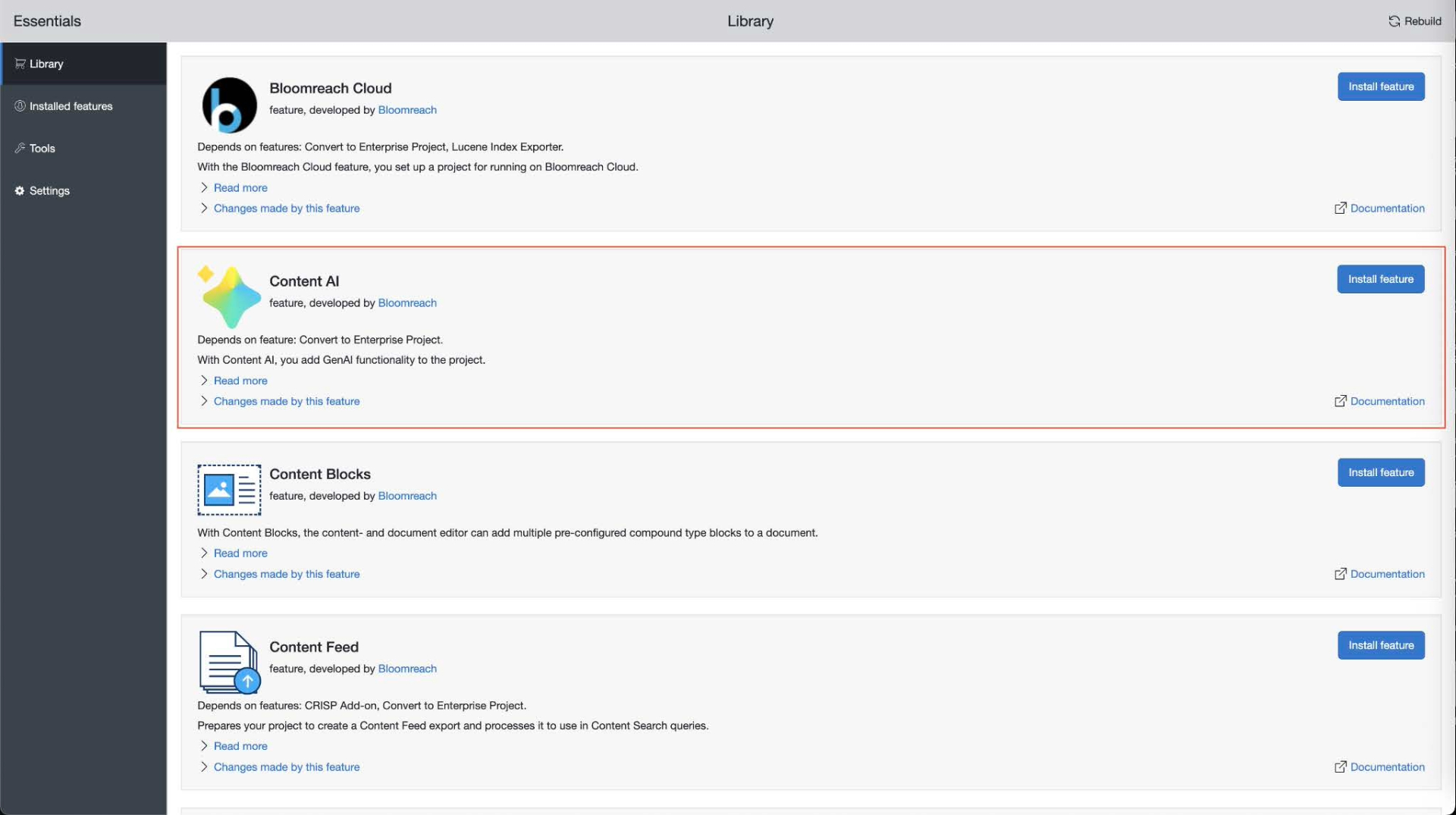
Go to Library - Make sure Enterprise features are enabled.
-
Look for Content AI and click Install feature.
-
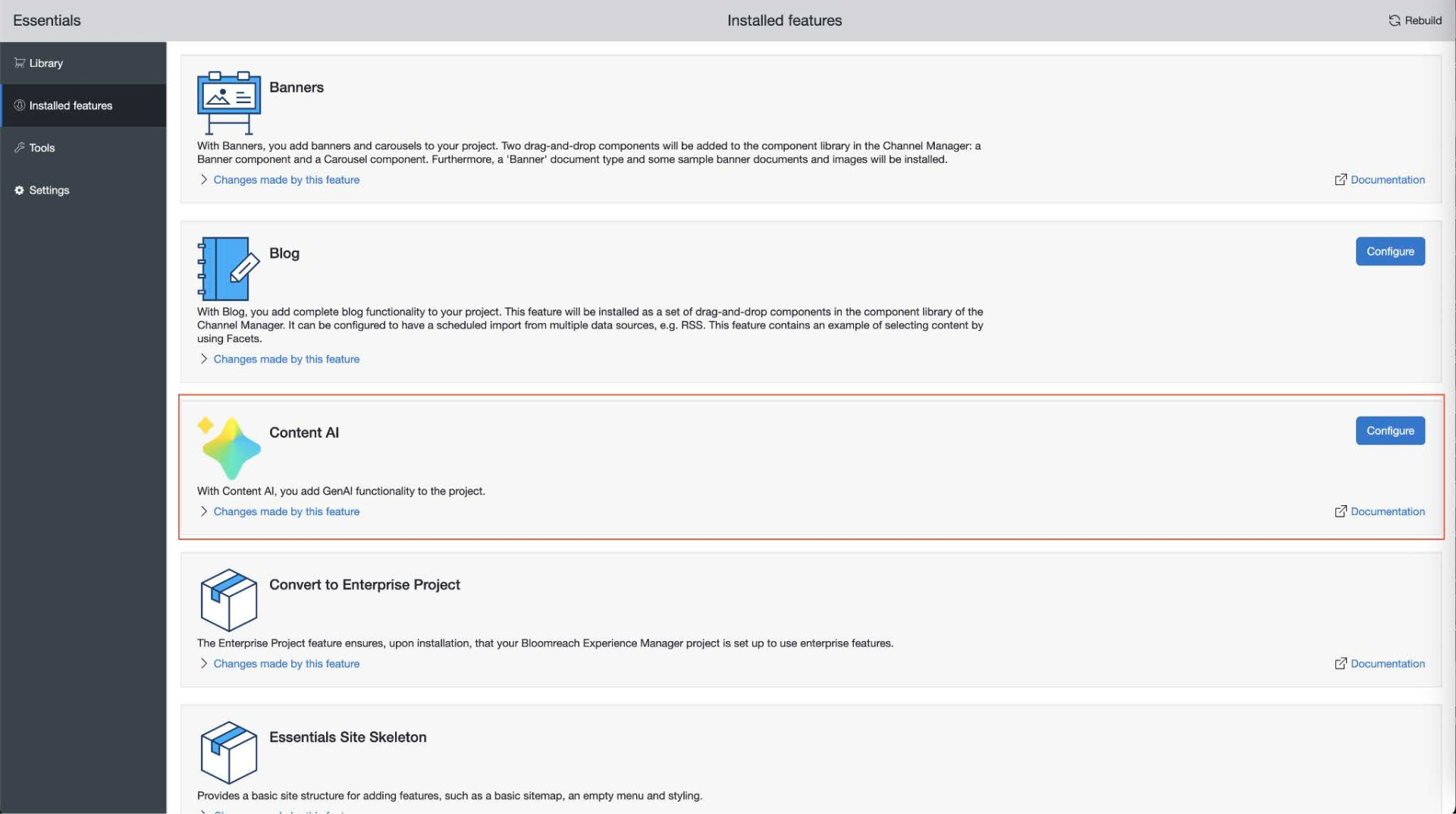
Once your project has restarted, go to Installed features.
-
Find Content AI and click Configure.
-
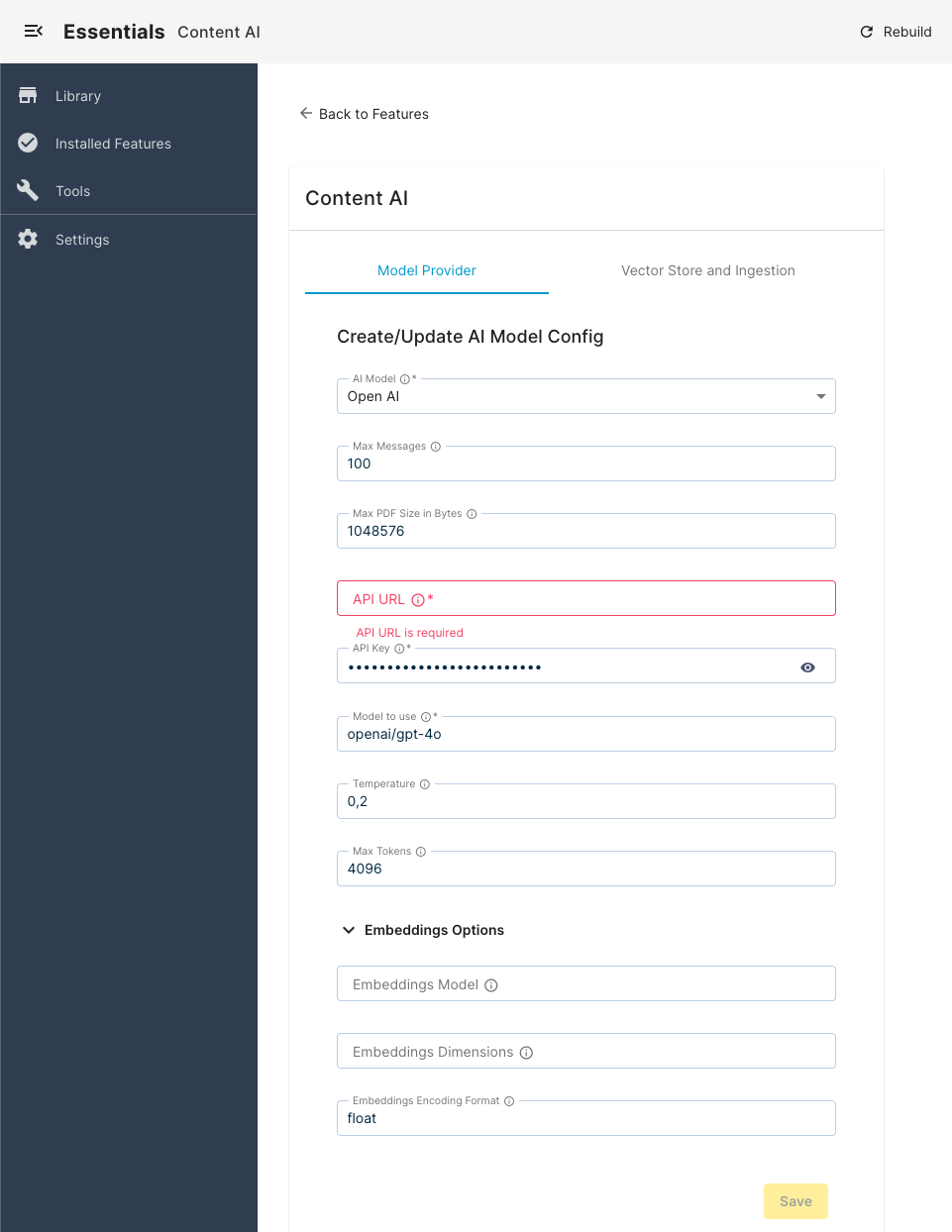
Select the Model Provider tab.
-
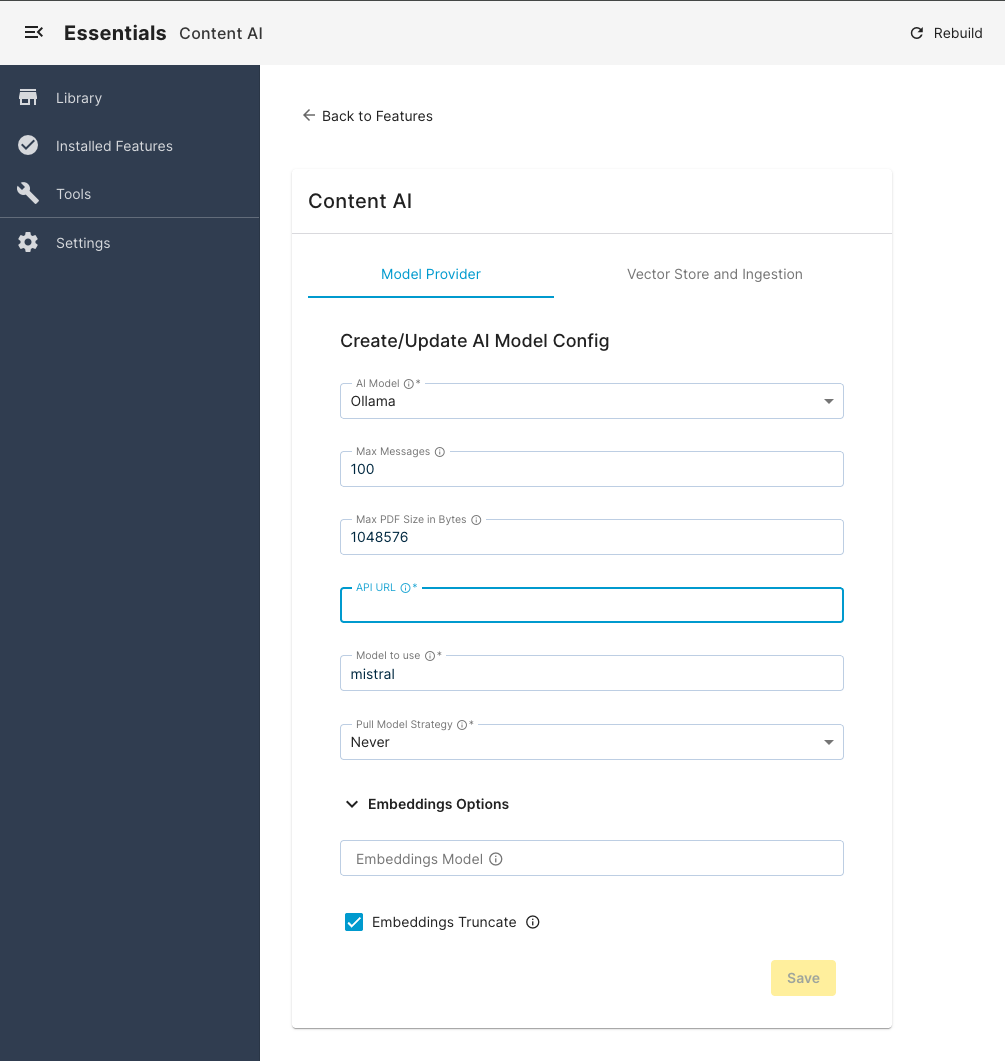
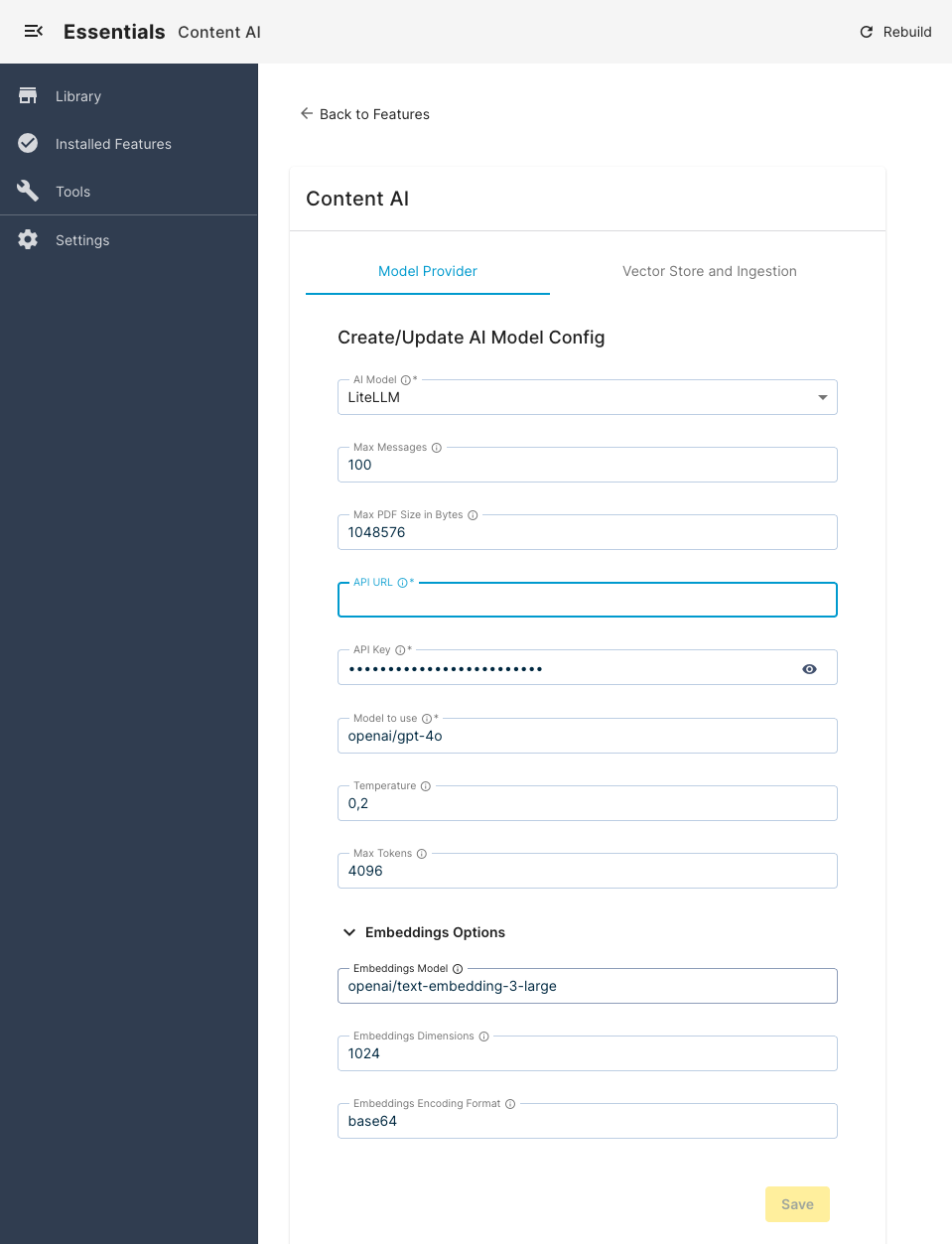
Choose the desired AI Model from the available options of supported providers.
-
Configure the other details such as API URL (endpoint), API key, and so on. Each provider has different configuration options (see Model Provider Configuration options section below).
-
Once you’re done, click Save.
-
If you don't have an external vector database configured, skip to step 15.
-
(Optional) Select the Vector Store and Ingestion tab.
-
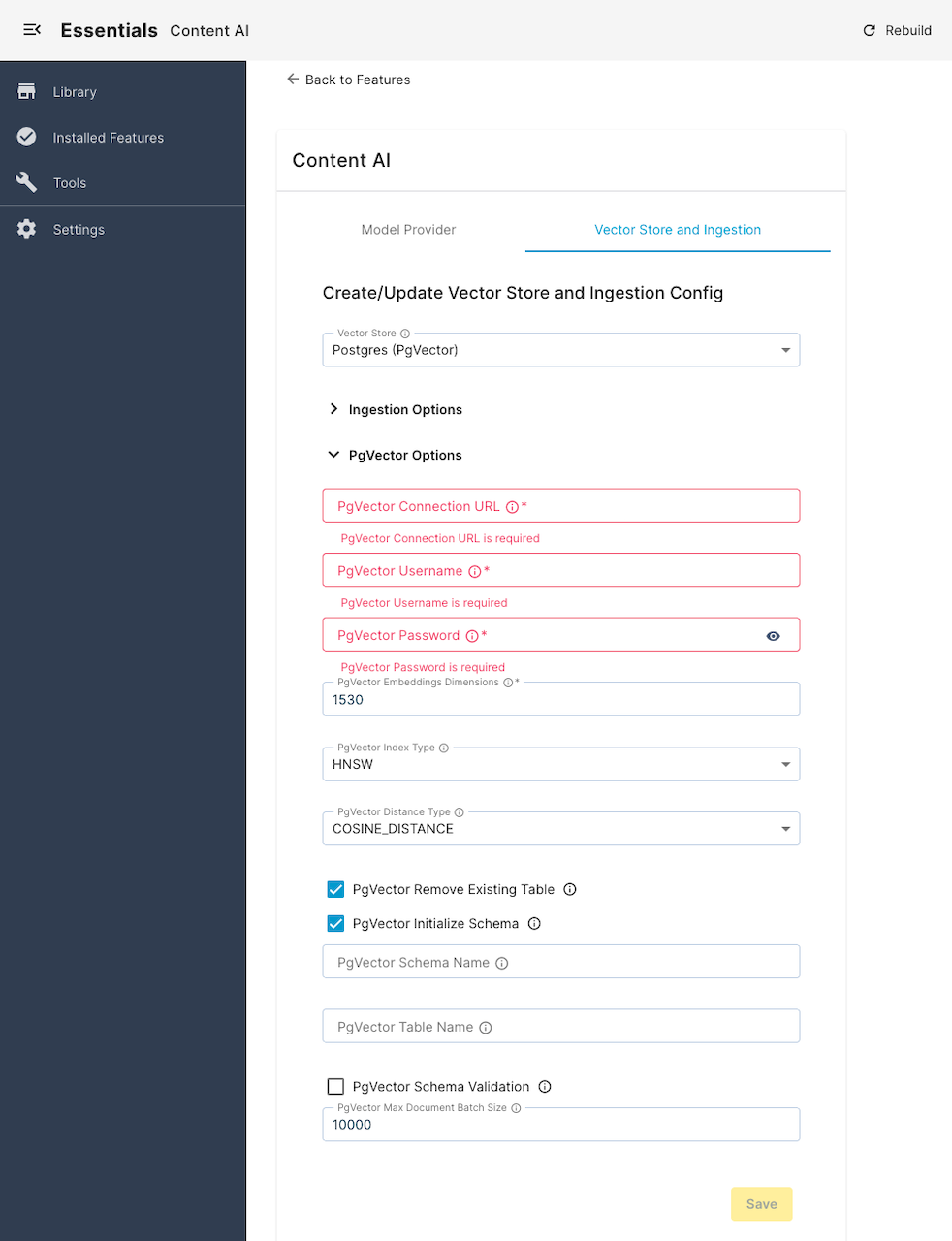
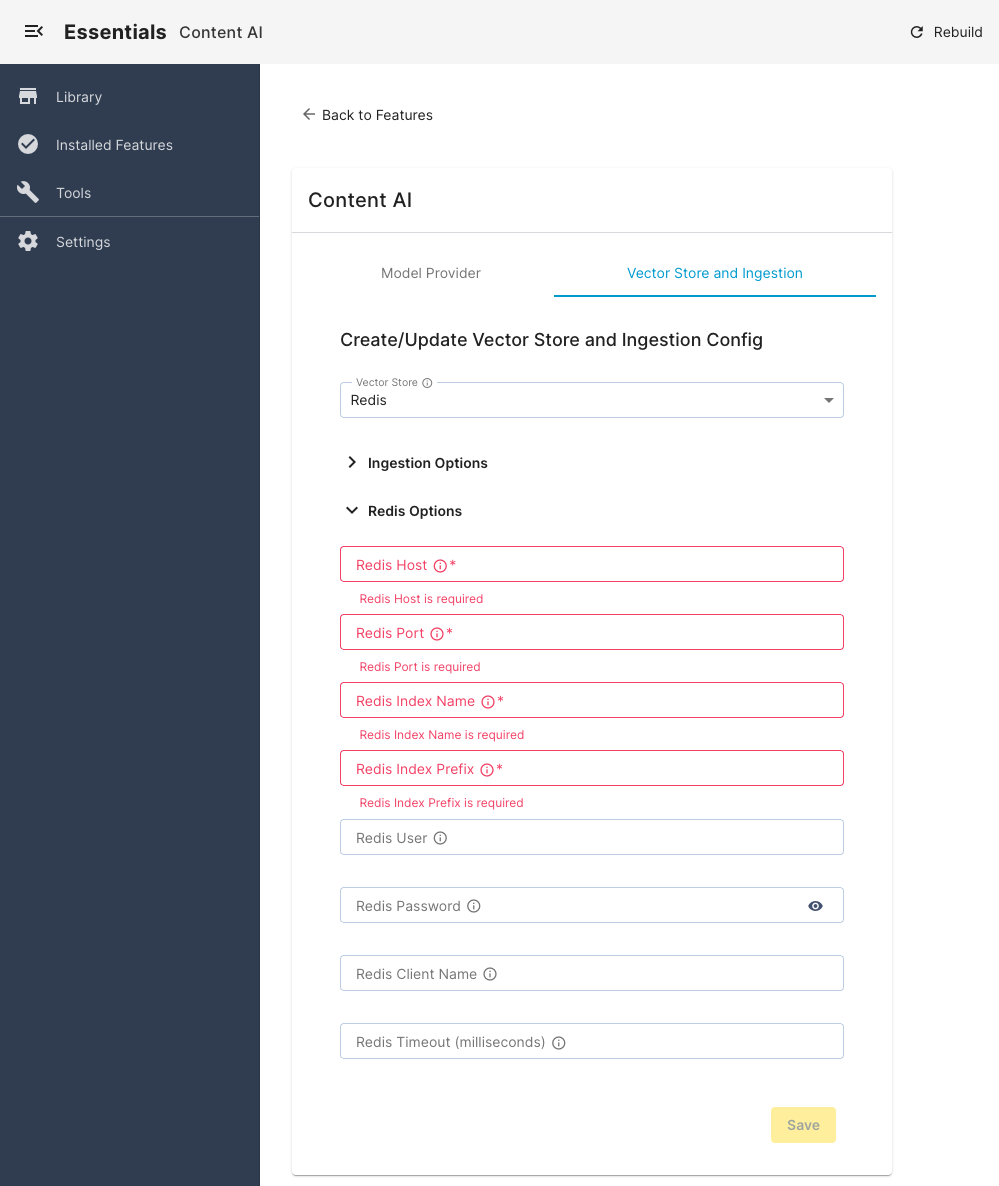
(Optional) Choose your configured Vector Store (Redis or Postgres).
-
(Optional) Configure Ingestion Options and options for your selected vector store (see Vector Store and Ingestion Configuration options section below).
-
(Optional) Once you’re done, click Save.
-
Lastly, rebuild and restart your project again.
Model Provider Configuration options
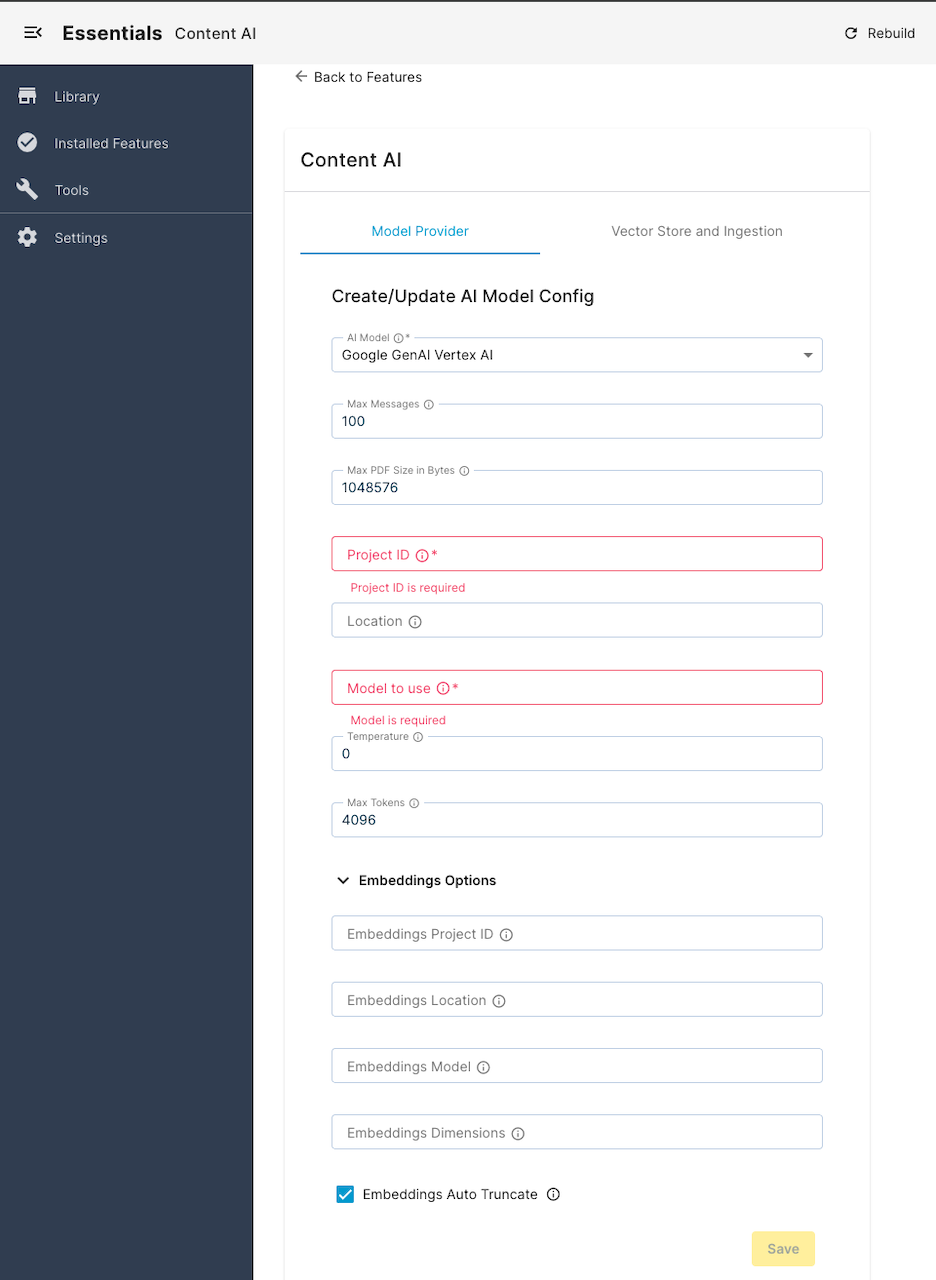
Each model provider can have different settings to configure, like:
-
API key/project ID: Enter your API key or project ID, depending on your model provider.
-
Model to use: Specify the exact model name and version to use in the AI Assistant. This allows you to choose the best performing model for a particular type of tasks.
-
Temperature: Set the temperature of the model. That controls the creativity, depth and randomness of the ai responses.
-
Max tokens: Specify the maximum number of tokens that can be used by a conversation. This helps you keep your token usage in check, so it doesn't exceed your allowed limit with your AI provider.
-
Max messages: Limit the maximum number of messages allowed in a single conversation. The user will not be allowed to send more messages once they have exhausted the limit, thereby keeping token usage in check.
-
Max PDF Size in Bytes: Specify the maximum number, in bytes, over which a pdf will not be allowed to be added as a reference to a conversation.
-
Embedding Options: Allows configuring options for Embedding model (required for Vector Store and Ingestion process).
Vector Store and Ingestion Configuration Options
Once you have selected a vector database, you can configure its options, such as connection URL, username, password, etc. You will also be able to configure Ingestion options here, such as:
- Ingestion Mode: Ingestion operating mode. In preview mode, unpublished content is indexed upon save/rename/copy/move operations, while in live mode only published content in indexed during publication (and scheduled publication).
- Ingestion Document Types: Comma sepatated list of fully qualified document types. Only content of those types will be indexed. If not provided, no content will be ingested.
- Ingestion Include Directories: Comma sepatated list of absolute paths. Unless the document is under one of those paths, it will be skipped from ingestion. Leave empty to allow ingestion from any directory.
- Ingestion Exclude Directories: Comma sepatated list of absolute paths. If the document is under any of those paths, it will be skipped from ingestion.
- Ingestion Initial Delay (seconds): How long, in seconds, after system startup, should the Ingestion process begin.
- Ingestion Interval (seconds): How often the process runs.
- Ingestion Batch Size: The ingestion processes multiple documents at once and sends them all together to the Vector Store.
- Ingestion Delay (milliseconds): Back-off time after processing of every batch.

Maintenance Scripts
The AI module installs tooling for maintenance of your Vector Store, in the form of Groovy scripts. See more details in Maintenance Groovy Scripts.