

In-Product Feedback
Overview
New in brXM 17.2, an in-product feedback button (“Give feedback”) appears in the CMS navigation bar. It lets editors and administrators submit structured feedback directly to the Bloomreach product team from within the application, without leaving the CMS.
The feature is enabled by default, so it works immediately after you upgrade to 17.2 — no configuration is required for standard use. If you prefer, you can disable it entirely or redirect feedback to your own endpoint; both options are described below.
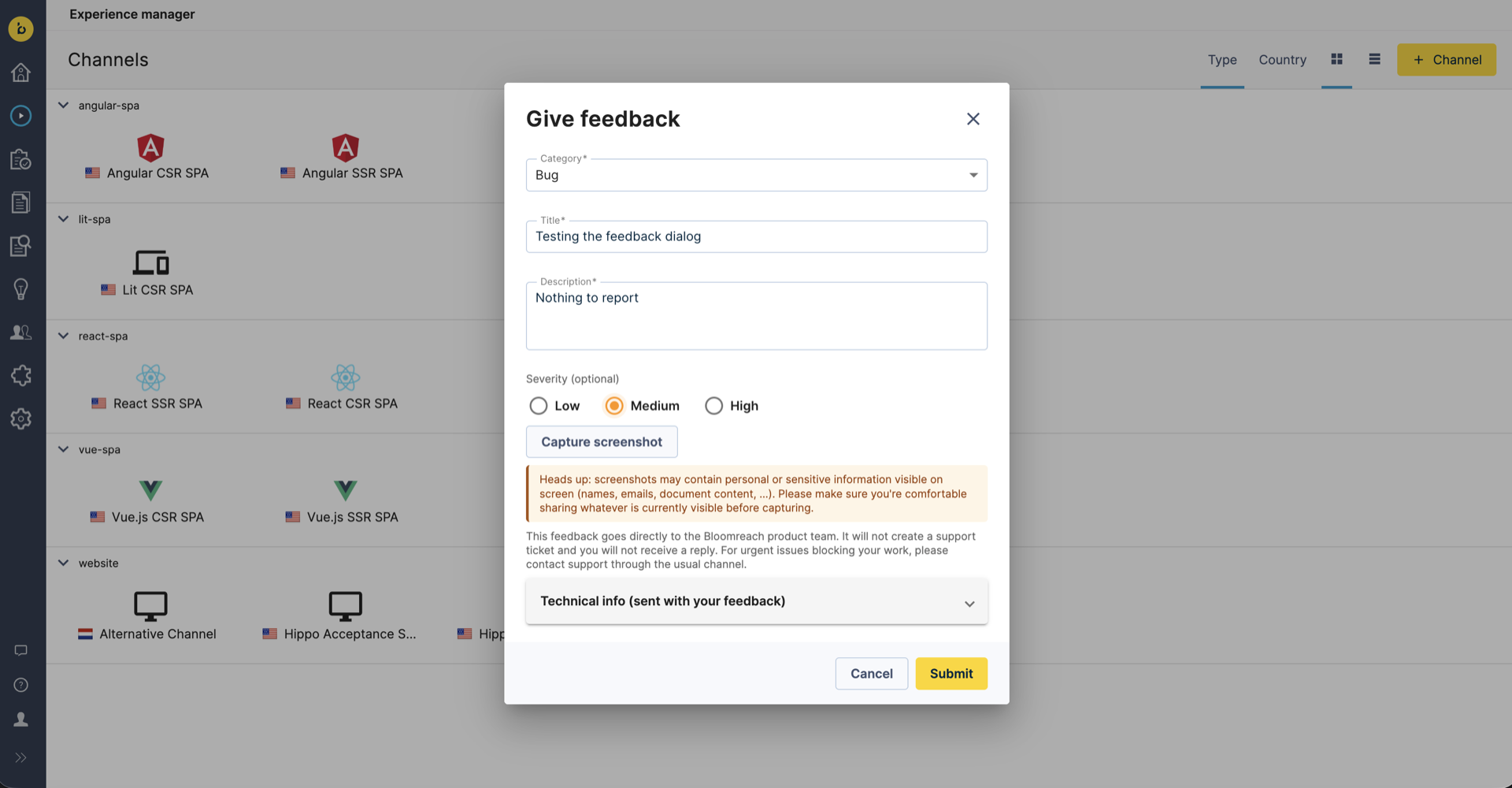
When a user clicks the feedback button, a dialog opens where they can choose a category, enter a title and description, optionally set a severity, and optionally capture a screenshot. On submit, the widget sends a structured JSON payload to the configured endpoint (by default, a Bloomreach-managed service).
Privacy & Data Collection
The feedback widget is designed to be transparent and strictly opt-in.
No passive collection
No personally identifiable information (PII) is collected passively. Nothing is sent anywhere until the user explicitly clicks Submit inside the feedback dialog. The widget does not track, beacon, or transmit any data in the background.
The user always sees what will be sent
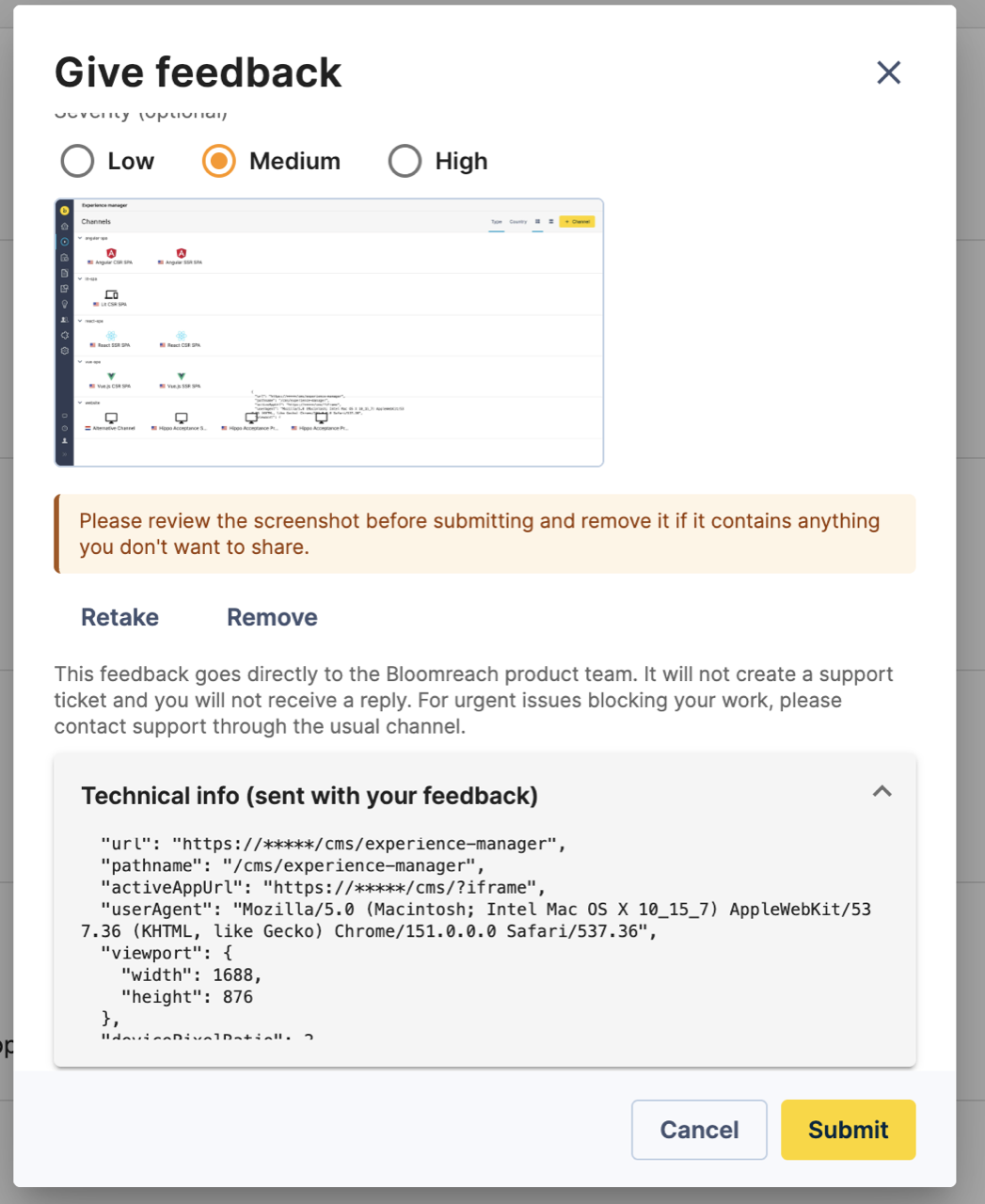
Before submitting, the dialog shows the user exactly what will be sent. A collapsible “Technical info” section displays the full context JSON, so there are no hidden fields — everything included in the payload is visible for review.
The context object that is always included with a submission contains only non-personal technical metadata about the session:
| Field | Description |
|---|---|
| url | Full current URL. |
| pathname | Path portion of the URL. |
| activeAppUrl | URL of the active iframe app, or null. |
| userAgent | Browser user-agent string. |
| viewport | Object with width and height. |
| devicePixelRatio | Display pixel ratio. |
| language | Browser UI language. |
| timezone | Browser IANA timezone. |
| timestamp | ISO-8601 timestamp of submission. |
Screenshots are explicitly opt-in
Screenshot capture never happens automatically. It only occurs when the user explicitly chooses to capture a screenshot within the dialog.
When a user chooses to capture a screenshot, the dialog displays a warning:
Heads up: screenshots may contain personal or sensitive information visible on screen (names, emails, document content, …). Please make sure you’re comfortable sharing whatever is currently visible before capturing.
After capture, a second reminder asks the user to review the screenshot before submitting. A captured screenshot is only included in the payload if the user does not remove it before submitting.
Disclaimer shown to users
The dialog shows the following disclaimer:
This feedback goes directly to the Bloomreach product team. It will not create a support ticket and you will not receive a reply. For urgent issues blocking your work, please contact support through the usual channel.
Default Configuration
Out of the box, the widget is fully functional with no operator action required.
| Setting | Default |
|---|---|
| Enabled | feedbackEnabled: true |
| Endpoint | https://brxm-feedback.bloomreach.works/feedback (Bloomreach-managed) |
| Outbound header | X-Api-Key: brxm-feedback-{version} |
- The feature is enabled by default (feedbackEnabled: true).
- Feedback is sent to the Bloomreach-managed endpoint https://brxm-feedback.bloomreach.works/feedback by default — this is where feedback goes unless you configure a custom endpoint.
- The default outbound header is X-Api-Key: brxm-feedback-{version}, where {version} is replaced at runtime with the actual brXM version string. For example, on brXM 17.2.0 the header sent is X-Api-Key: brxm-feedback-17.2.0.
No operator action is required for this out-of-the-box behaviour.
Disabling the Feature
You can disable the feedback button entirely. Configuration is done through the JCR CMS console.
The relevant configuration node is:
/hippo:configuration/hippo:frontend/navapp/navapp-services/navAppSettingsService
Steps to disable
- Open the CMS console at <cms-url>/cms/console.
- Navigate to the node above.
- Add a String property named feedbackEnabled with the value false.
- Save and reload the CMS.
To re-enable
Set feedbackEnabled back to true, or delete the property entirely — the Java default is true, so removing the property restores the enabled state.
Note: This change takes effect on the next CMS page load. The setting is read from the plugin configuration on each navapp settings request, so a reload of the CMS is sufficient — no server restart is needed.
Configuring a Custom Feedback Endpoint
If your organisation wants to receive feedback in its own system rather than sending it to Bloomreach, you can point the widget at a custom endpoint and control the outbound HTTP headers.
Both properties below live on the same node as feedbackEnabled:
/hippo:configuration/hippo:frontend/navapp/navapp-services/navAppSettingsService
JCR property: feedbackEndpointUrl
- Type: String
- Effect: All feedback POST requests go to this URL instead of the Bloomreach endpoint.
- Payload: Unchanged — the JSON structure is identical regardless of endpoint (see section 6).
JCR property: feedbackHeaders
- Type: Multi-value String
- Format: Each entry is a raw HTTP header in Name: Value format, for example Authorization: Bearer mytoken.
- Behaviour when set: The configured headers replace the default X-Api-Key header entirely — only the headers you configure are sent.
- Behaviour when absent or empty: The default X-Api-Key: brxm-feedback-{version} header is used.
Step-by-step: custom endpoint with custom auth headers
- Open the CMS console at <cms-url>/cms/console.
- Navigate to /hippo:configuration/hippo:frontend/navapp/navapp-services/navAppSettingsService.
- Ensure the feature is enabled: set feedbackEnabled to true, or leave the property absent (default true).
- Add a String property feedbackEndpointUrl with your endpoint URL, for example https://feedback.example.com/intake.
- Add a Multi-value String property feedbackHeaders. Add one entry per header, for example:
- Authorization: Bearer mytoken
- (optionally more entries, one raw header each)
- Save and reload the CMS.
- Verify by submitting feedback and confirming the request reaches your endpoint with the configured headers.
Note: If you configure a custom endpoint, ensure your server accepts CORS preflight requests from the CMS origin and handles a request body with Content-Type: application/json. Because the request originates from the CMS in the browser, the browser sends a CORS preflight (OPTIONS) request first; if your server does not allow the CMS origin, the browser blocks the feedback POST.
Feedback Payload Reference
The widget POSTs a JSON body to the configured endpoint with Content-Type: application/json. The full shape is:
{
  "category": "bug | feature_request | usability | documentation",
  "title": "string (max 80 chars)",
  "description": "string (max 1000 chars)",
  "severity": "low | medium | high  (optional, omitted if not selected)",
  "screenshotBase64": "data:image/jpeg;base64,... (optional, only when screenshot captured and not removed)",
  "context": {
    "url": "string",
    "pathname": "string",
    "activeAppUrl": "string | null",
    "userAgent": "string",
    "viewport": { "width": number, "height": number },
    "devicePixelRatio": number,
    "language": "string",
    "timezone": "string",
    "timestamp": "ISO-8601 string"
  }
}
Field presence
| Field | Presence | Notes |
|---|---|---|
| category | Always | One of bug, feature_request, usability, documentation. Required in the dialog. |
| title | Always | Max 80 characters. Required in the dialog. |
| description | Always | Max 1000 characters. Required in the dialog. |
| severity | Optional | One of low, medium, high. Omitted from the body if the user does not select one. |
| screenshotBase64 | Optional | A data:image/jpeg;base64,... data URI. Present only when a screenshot was captured and not removed before submit. |
| context | Always | Object of non-personal technical metadata (see below). |
| context.url | Always | Full current URL. |
| context.pathname | Always | Path portion of the URL. |
| context.activeAppUrl | Always | URL of the active iframe app, or null. |
| context.userAgent | Always | Browser user-agent string. |
| context.viewport | Always | Object with numeric width and height. |
| context.devicePixelRatio | Always | Numeric display pixel ratio. |
| context.language | Always | Browser UI language. |
| context.timezone | Always | Browser IANA timezone. |
| context.timestamp | Always | ISO-8601 timestamp of submission. |
Configuration Reference Table
All feedback-related properties are configured on the navAppSettingsService node:
/hippo:configuration/hippo:frontend/navapp/navapp-services/navAppSettingsService
| Property | Type | Default | Description |
|---|---|---|---|
| feedbackEnabled | Boolean/String | true | Show or hide the feedback button. |
| feedbackEndpointUrl | String | https://brxm-feedback.bloomreach.works/feedback | The URL that receives feedback POST requests. |
| feedbackHeaders | Multi-value String | X-Api-Key: brxm-feedback-{version} | HTTP headers sent with each feedback POST. When set, replaces the default X-Api-Key header entirely. |